Settings
Discovery
"Discovery " category lets you change configurations on subnet auto-discovery funciton.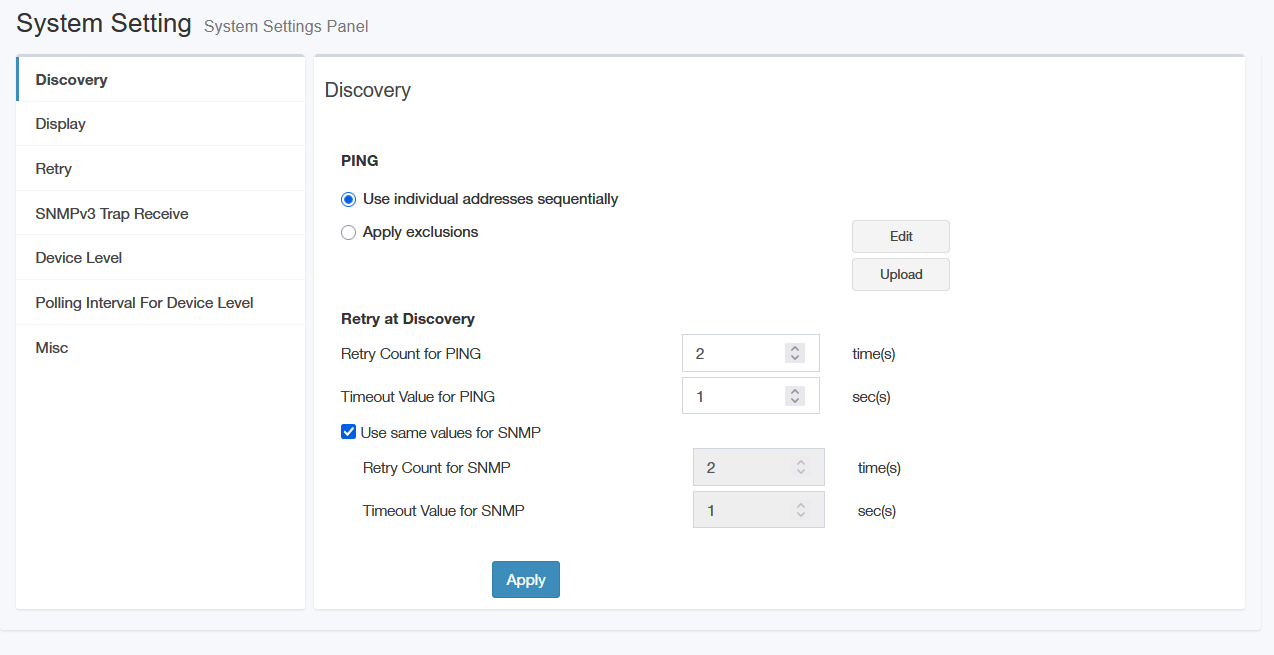
| Item Name | Contents |
|---|---|
| PING |
|
| Retry at Discovery |
|
| Apply | Apply the discovery settings changes. |
Exclusion file
If you select "Apply exclusions" in "PING" on the "Discovery" page, the devices to be discovered are determined based on the host, model, and IP Addresses listed in the "exclusion file" instead of automatically detecting IP nodes by Ping.◼ Example of description
# sample exclude file data ↓

192.168.1.0/24 ↓

exclude 192.168.1.1-31 ↓

exclude 192.168.1.200-192.168.1.239 ↓

192.168.1.10-29 ↓

tq6403gen2 ↓

exclude tq5403 ↓

1.3.6.1.4.1.207.1.13.46 ↓
- Filename can be any.
- Write one definition per line.
- Lines starting with "#" and empty lines are ignored.
- The definition written on the line is specified by either host or model as described below, and devices that match the definition are added to the discovery targets.
- Specify host
Hosts can be specified by individual IP Addresses, IP Address ranges, subnets, or host names.
- Individual IP Address
Specify the IPv4 Addresses of the devices to be included in the discovery.
- IP Address Range
Specify a range of IPv4 addresses using a hyphen (-).
You can specify either the first and last addresses, such as "192.168.1.1-192.168.1.5", or you can specify a range of just one octet, such as "192.168.1-10.32".
- Subnet
Specify the IPv4 network address and mask length separated by a slash (/).
For example, "192.168.1.0/24", "192.168.1.1-192.168.1.254", and "192.168.1.1-254" all mean the same thing.
- Hostname
Attempts to resolve hostnames to IPv4 addresses using DNS. You can also specify the host name using the FQDN.
If an IPv4 Address cannot be obtained, it is ignored.
- Individual IP Address
- Model specification
The models are compared based on the sysObjectID of the MIB obtained from the device.
When you enter a model name, the sysObjectID is compared with the model name (e.g. atx90024XT, tq6403gen2, etc.) converted from the compiled contents of the MIB file registered in the SNMP Plug-in.
If you want to specify a device whose MIB is not registered or compiled in the SNMP Plug-in, you can directly specify the model ID in OID format, such as "1.3.6.1.4.1.207.1.13.46".
Also, if you write it in OID format followed by an @ sign, any sysObjectID obtained from the device that starts with the specified string will be considered a match. For example, if you specify "@1.3.6.1.4.1.207", any sysObjectID that begins with "1.3.6.1.4.1.207" will be considered to match the definition.
- Specify host
- If you write "exclude " at the beginning of a line, any devices that match the definitions that follow on the line will be excluded from the search.
Any conditions on a line that do not begin with "exclude" are considered to be included in the search.
- If both an include and an exclude definition match, the definition written further down in exclusion file takes precedence.
For example, if you write it as follows, 192.168.1.32 to 192.168.1.254 are searched.
192.168.1.0/24 ↓

exclude 192.168.1.1-31 ↓
As a result, all addresses from 192.168.1.1 to 192.168.1.254 are searched.
exclude 192.168.1.1-31 ↓

192.168.1.0/24 ↓
SNMPv3 Trap Receive
"SNMPv3 Trap Receive" category lets you configure SNMP Parameters used for receiving SNMPv3 traps.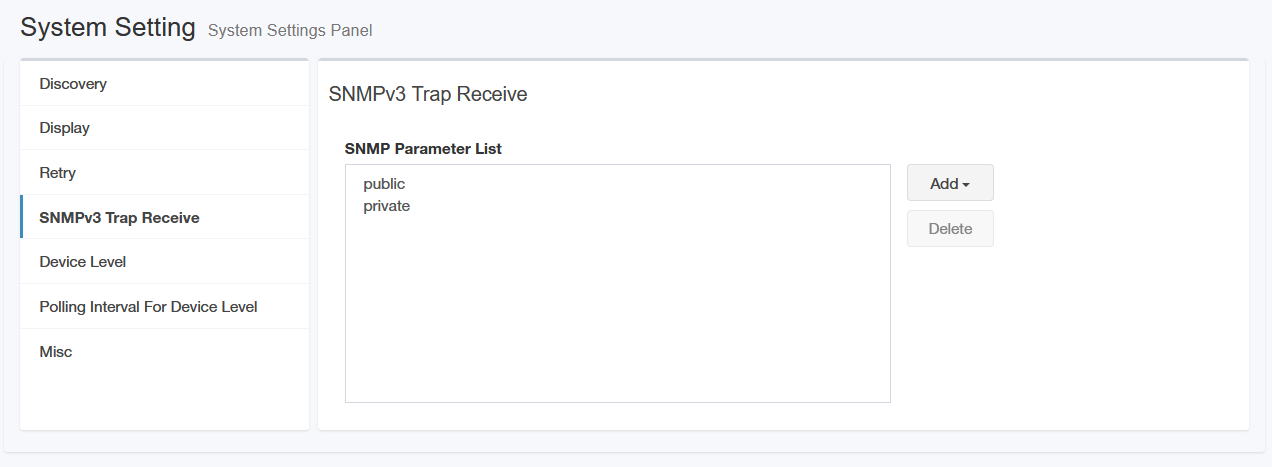
| Item Name | Contents |
|---|---|
| Parameter List | Shows a list of SNMP Parameters used for receiving SNMPv3 traps. |
| Add | Lets you add or edit SNMP Parameters used for receiving SNMPv3 traps. The SNMP Parameters created in SNMP Parameter List are displayed in the drop-down list. Selecting one adds it to the "Parameter List". |
| Delete | Excludes the parameters selected in the "Parameter list" from being received. It just removes the parameter from the list. It does not delete the parameter definition. |
Misc
The timezone is configured on the Misc page.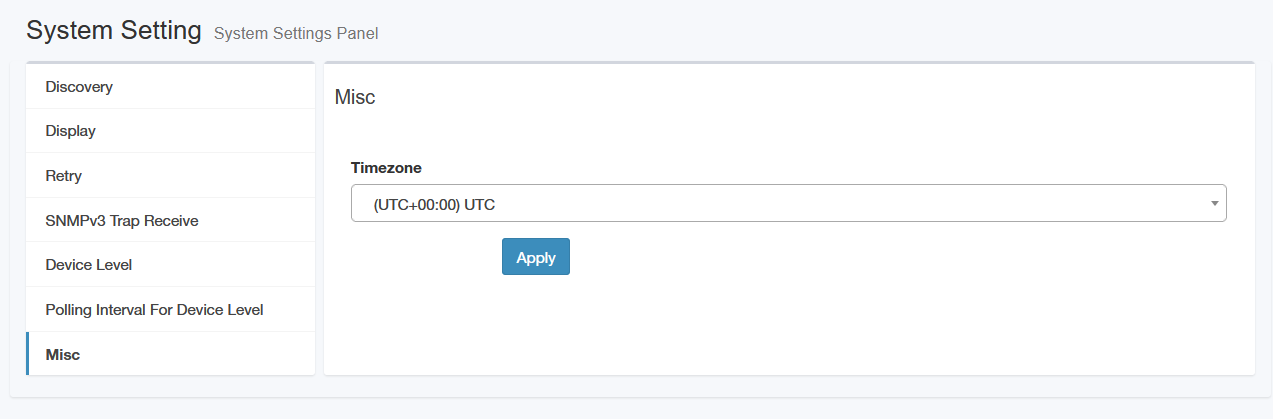
| Item Name | Contents |
|---|---|
| Timezone | Configure the time zone for the time displayed by the %time parameter of the Action Command. Select the appropriate item from the pull-down menu. Note that the time displayed on various SNMP plugin pages is not affected by this setting and is shown according to the time zone setting of the operating system of the PC being used. |
| Apply | Applies the timezone selected in "Timezone". |
22 Dec 2025 11:35